This is a read-only archive of the Opticraft Community forums (2010–2022), preserved in October 2026. Posting, logins and registration are closed.

Started by Mr.Monkey, March 17, 2011, 06:04:25 PM

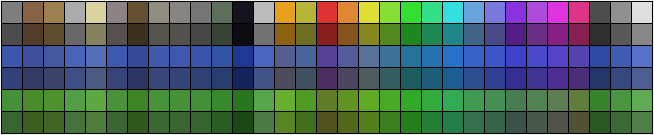
Minecraft compatible Colourpalette

Mr.Monkey


From left to right: stone, dirt, planks, steps, sand, gravel, wood, gold ore, iron ore, coal ore, mossy cobblestone, obsidian, iron, gold, sponge, red, orange, yellow, lime, green, aqua, cyan, blue, indigo, purple, violet, magenta, pink, dark grey, light grey, white.

Linky
I added a manual, but if there are any problems you can contact me here or in a pm.

Mr.Monkey

Updated, with more colours, a link and a manual  ;)

Spartan

Woah nice work monkey! I may start spriting because of this :)

Zoofy

I definitely agree with Spartan on this one. It makes me want to sprite on minecraft now. Great work.

Mr_Mr_Mr

Can you make a dumby video guide with what you need and how to set it up? I can't get it working :/

Mr.Monkey

No sorry, you will have to do it with this. Could you tell me which parts are not clear to you though, I can improve the manual if there are problems.

Mr_Mr_Mr

Quote from: Mr.Monkey on March 27, 2011, 11:03:46 PM
No sorry, you will have to do it with this. Could you tell me which parts are not clear to you though, I can improve the manual if there are problems.
I don't get how to get the color pallet thing open

Mr.Monkey

Uhm, that's explained I believe. The only thing that could possibly go wrong there is that you don't use the right image-editor. Mine is exclusively for Gimp, but Toxicstriker91 has converted the palette for use with photoshop. I don't know if he is planning to release it though.

Toxicstriker91


Mr_Mr_Mr


boomonkey

Thank you for making this monkey, made a 2 layer (sort of) sprte with this. ;D

Toxicstriker91

It took me a while to make the video, but hey it is free so...
Here it is, It has no music because i made it in colidge. Ill try to find a sutable music someday.
http://www.youtube.com/watch?v=STGn0-sjnB8
Here is a shor manual that i made for the video, but mind that MrMonkeys's manual is more detailed and it will give you more info.Here it is:
1. You have to open a random pic.
2. Then you go to Image>Mode>Indexed.
3. You have to make "Use custom palette" active, then click on the rectangle, then go to the bottom right button witch says "Open the palette section dialog".Once you click it you'll see the palettes window. Right click one of the many palettes that are there and "click Import Palette".Then you need to make "Palette file" active by clicking the circle infront of it.Next you need to find the file "Minecraft.gpl" (it is in monkey's tutorial), by clicking the rectangle with the (none) sign in it. From there go to the folder where you put your file. When you load it click "Import" without making any changes in the current window. If you made everithing by the book you will see the palette in the palettes wondow(it is The first palette).
4. Ok we loaded the file. Now you have to put it in use.
Close the "Pallettes" and "indexed color conversion" windows.They need to be closed because indexed mode" has to refresh and load the existing patterns.
5. The actual "pixelising". Again go to Image>Mode>Indexed. But now when you click the "Use custom palette""button you will see the minecraft's pallete on top of the other.Go to color dittering and try all setings there. ENJOY.
6. To see the colors and their relevan color ingame cust go to "palettes window", mark minecraft.gpl and click button at the bottom left corner edit pallete.Remember to make the colims 31.

optical

Curious, did you create this pallet?

Mr.Monkey

#13
yh, I downloaded the mc classic textures, scaled them to 1 pixel, and added these to the palette. Not very hard to do, but quite useful :P

nice vid toxic ;)

Mr_Mr_Mr

Thanks toic, I'll try that when I get back from Paris