


Okay, so I've seen quite a few people not know how to upload screenshots to the forums, so I thought Id make a post showing how I'd do it since I dont think theres any posts about it. This is only for Windows and Linux, if anyone knows how to do it on a mac, please let me know!
Step One:
Use F2 to take screenshots.
Step Two:
Go to imgur.com, and click on the big blue button in the top corner that says "upload images". You'll get something that looks like this:
[spoiler]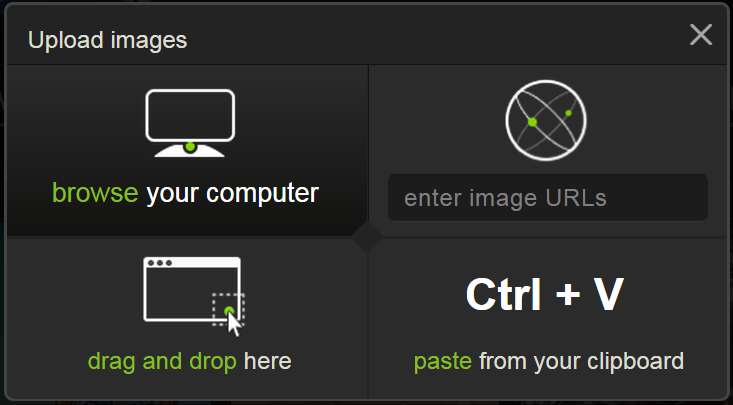 [/spoiler]
Click "browse your computer".
Step Three (Windows Only):
[spoiler]
This is where you have to locate the screenshots folder.
Type %appdata% up at the top, like so:
[spoiler] [/spoiler]
and click ENTER.
Look for a folder called ".minecraft". It'll be towards the top, if not at the very top, and click on that. Once there, you'll want to click on the screenshots folder. [/spoiler]
Step Three (Linux Only):
[spoiler]
Thanks to kag1999 for explaining how to do it!
Navigate to your home directory. It should be "/home/username/" Its the one with the little house next to it in the file browser
Hit Ctrl + H. Hidden files will now visible.
There should be a folder called ".minecraft"
inside this folder is a folder called "screenshots" this is where your screenshots are. [/spoiler]
Step Four:
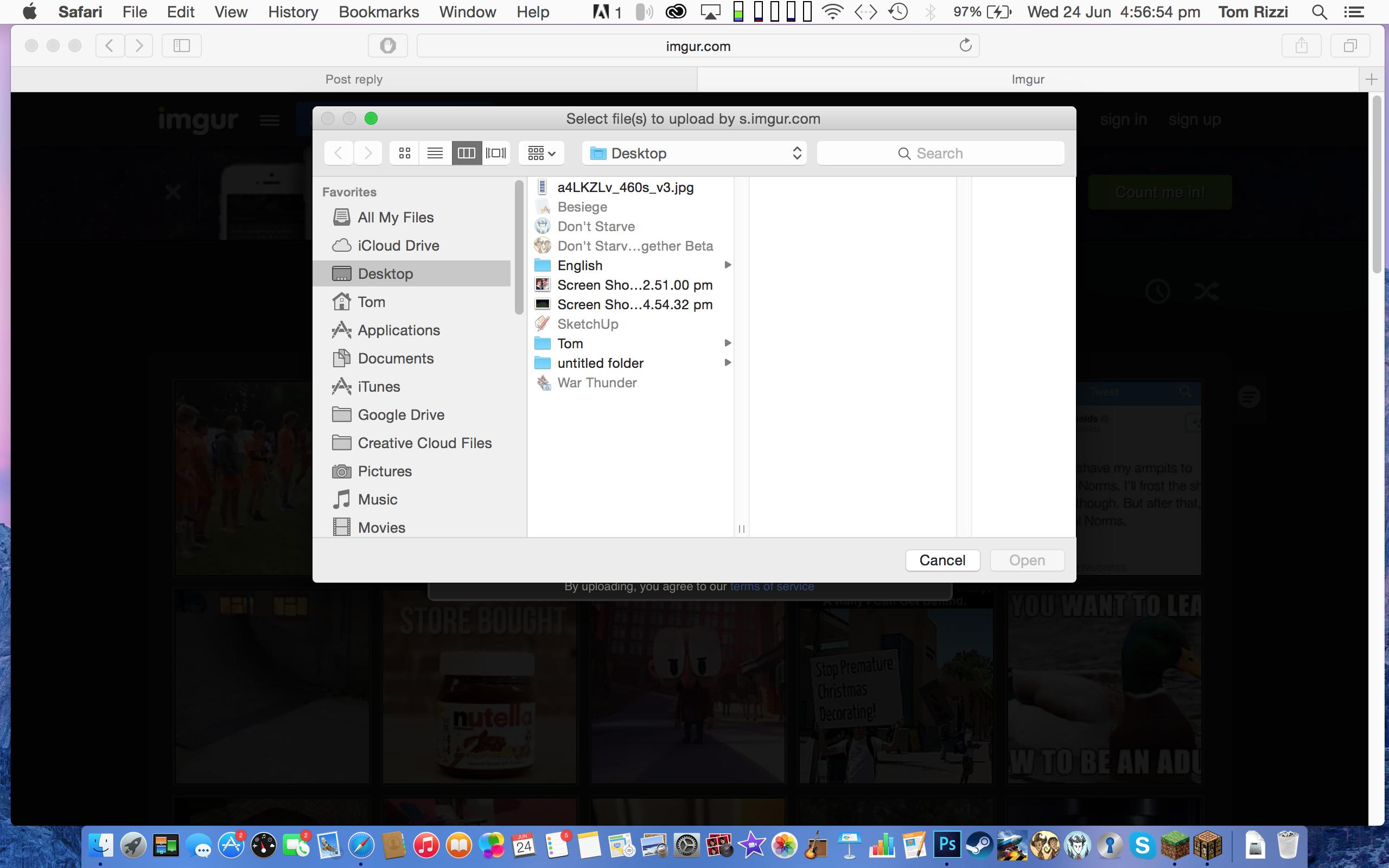
Search for the picture that you want, click it, then click "Open". If you would like to upload more than one screenshot, hold the ctrl key while clicking the pictures, so that you can select more than one.
[spoiler]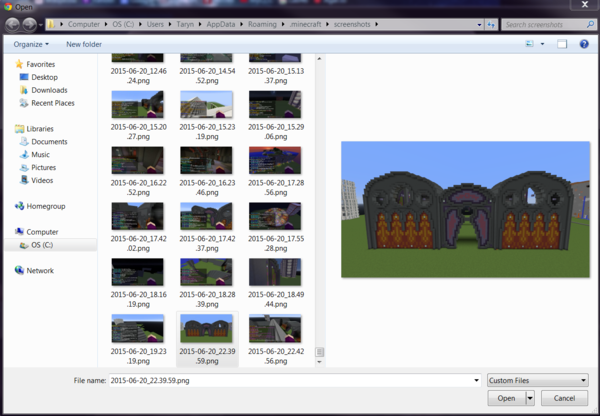 [/spoiler]
Step Five:
Once it uploads and takes you to the image, you should see this on the right of it:
[spoiler]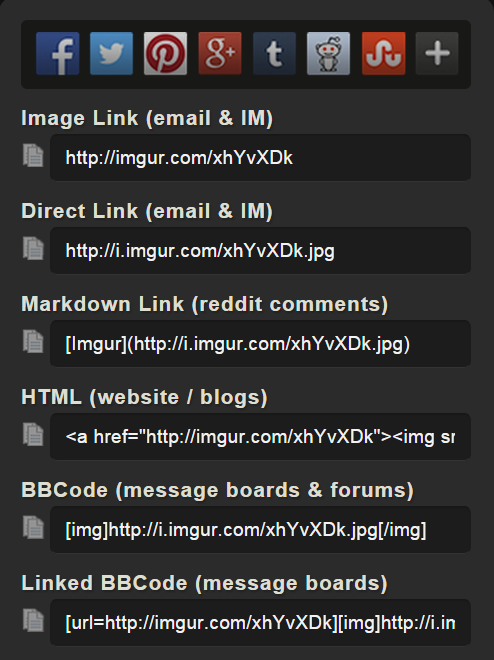 ][/spoiler]
Look for where it says "BBCode (message boards & forums)", and copy the text under it, then just paste it onto the forums here. Should look something like this:
Step Six:
This is for if you would like to edit the size a bit, since screenshots tend to be too big for the forums (this part is optional, though it looks much cleaner):
For example this:
would look like this:
[spoiler]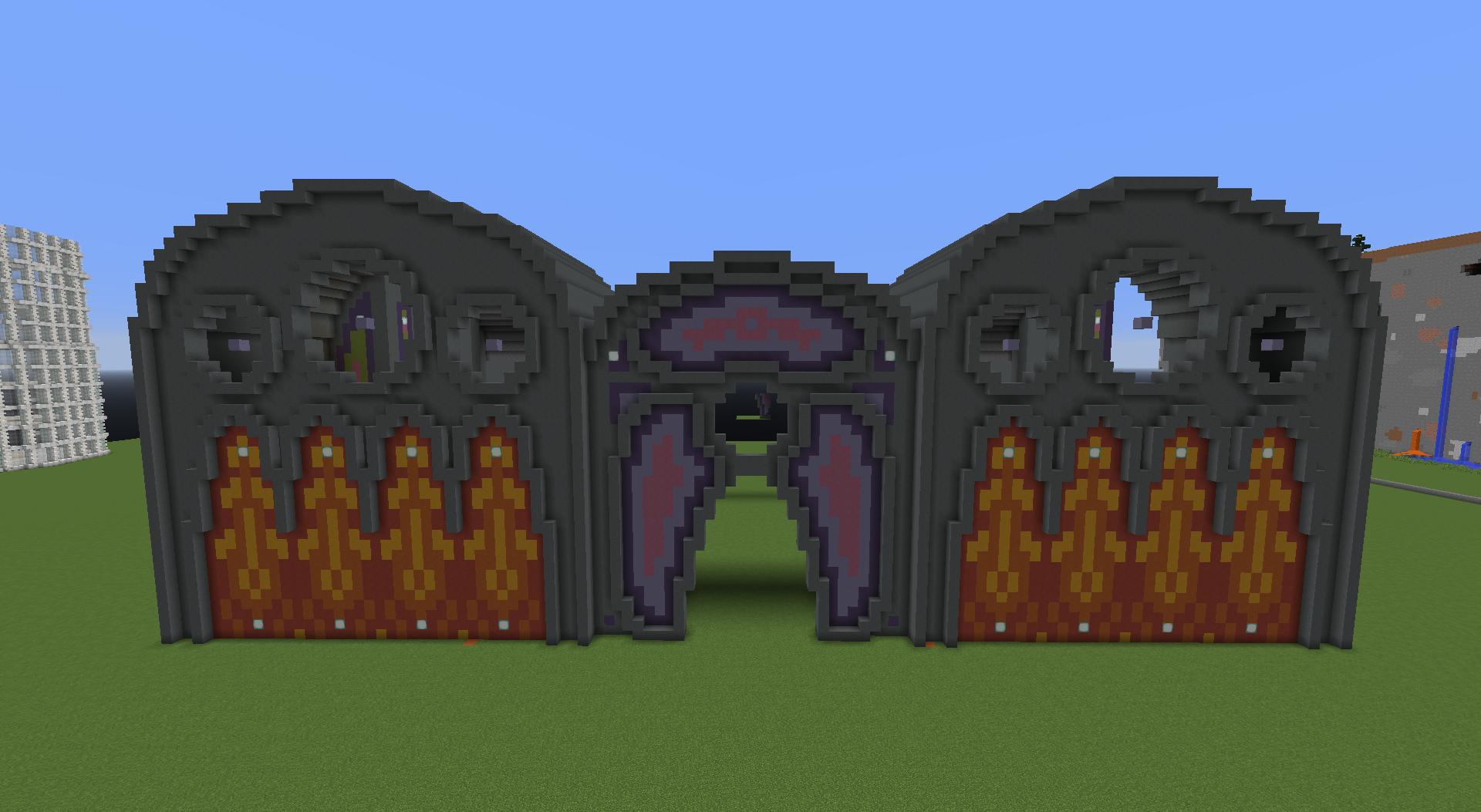 [/spoiler]
Too big right?
Change the link slightly, as I did in the example.
[spoiler][/spoiler]
And there you go!
Step One:
Use F2 to take screenshots.
Step Two:
Go to imgur.com, and click on the big blue button in the top corner that says "upload images". You'll get something that looks like this:
[spoiler]
[/spoiler]Click "browse your computer".
Step Three (Windows Only):
[spoiler]
This is where you have to locate the screenshots folder.
Type %appdata% up at the top, like so:
[spoiler]
[/spoiler]and click ENTER.
Look for a folder called ".minecraft". It'll be towards the top, if not at the very top, and click on that. Once there, you'll want to click on the screenshots folder. [/spoiler]
Step Three (Linux Only):
[spoiler]
Thanks to kag1999 for explaining how to do it!
Navigate to your home directory. It should be "/home/username/" Its the one with the little house next to it in the file browser
Hit Ctrl + H. Hidden files will now visible.
There should be a folder called ".minecraft"
inside this folder is a folder called "screenshots" this is where your screenshots are. [/spoiler]
Step Four:
Search for the picture that you want, click it, then click "Open". If you would like to upload more than one screenshot, hold the ctrl key while clicking the pictures, so that you can select more than one.
[spoiler]
[/spoiler] Step Five:
Once it uploads and takes you to the image, you should see this on the right of it:
[spoiler]
][/spoiler]Look for where it says "BBCode (message boards & forums)", and copy the text under it, then just paste it onto the forums here. Should look something like this:
Code Select Expand
[img]http://i.imgur.com/xhYvXDk.jpg[/img]Step Six:
This is for if you would like to edit the size a bit, since screenshots tend to be too big for the forums (this part is optional, though it looks much cleaner):
For example this:
Code Select Expand
[img]http://i.imgur.com/xhYvXDk.jpg[/img]would look like this:
[spoiler]
[/spoiler]Too big right?
Change the link slightly, as I did in the example.
Code Select Expand
[img width=800 height=600]http://i.imgur.com/xhYvXDk.jpg[/img][spoiler]
[/spoiler]And there you go!





 [/spoiler]