


For those applying who don't know how to, here is a guide for screen shots! ~credits to Tazaraki from http://www.mudandblood.net/ ~
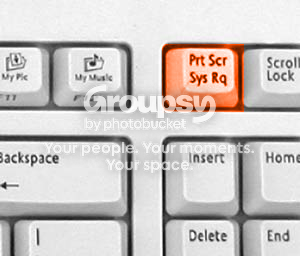
1. Press the Print screen button on your keyboard.
~note that the Print Screen button is found here ~
[image no longer available]
keep in mind that it sometimes comes up at Prt Scr.
like this:
2. Open the Paint program or any other image editing software you got.
3. Press Ctrl+V (Paste command), in that program.
Optional: You may crop or edit the picture as you wish.
4. Save the picture as a .jpg or .jpeg file.
5. Open up the internet browser and sign in / sign up for an image hosting website.
6. Upload your image to that website and copy the direct link of that image.
7. From the direct link of the image you copied, paste them in the forum reply.
8. Then wrap the pasted link with the following code:
9. You're done and you may post.
10. Enjoy.
/Request Sticky
1. Press the Print screen button on your keyboard.
~note that the Print Screen button is found here ~
[image no longer available]
keep in mind that it sometimes comes up at Prt Scr.
like this:
2. Open the Paint program or any other image editing software you got.
3. Press Ctrl+V (Paste command), in that program.
Optional: You may crop or edit the picture as you wish.
4. Save the picture as a .jpg or .jpeg file.
5. Open up the internet browser and sign in / sign up for an image hosting website.
6. Upload your image to that website and copy the direct link of that image.
7. From the direct link of the image you copied, paste them in the forum reply.
8. Then wrap the pasted link with the following code:
Code Select Expand
[img] image link [/img]9. You're done and you may post.
10. Enjoy.
/Request Sticky



![[image no longer available]](http://i21.photobucket.com/albums/b251/rmooar/Misc%20stuff/Images%20for%20work/prtscr.jpg)